A customer’s email is on the dashboard you are about to show
You need the screen, not the personal data on it. Blurring it in a video editor afterwards does not help in a live call.
 Privacy BlurAdd to Chrome
For screen shares, demos and recordings
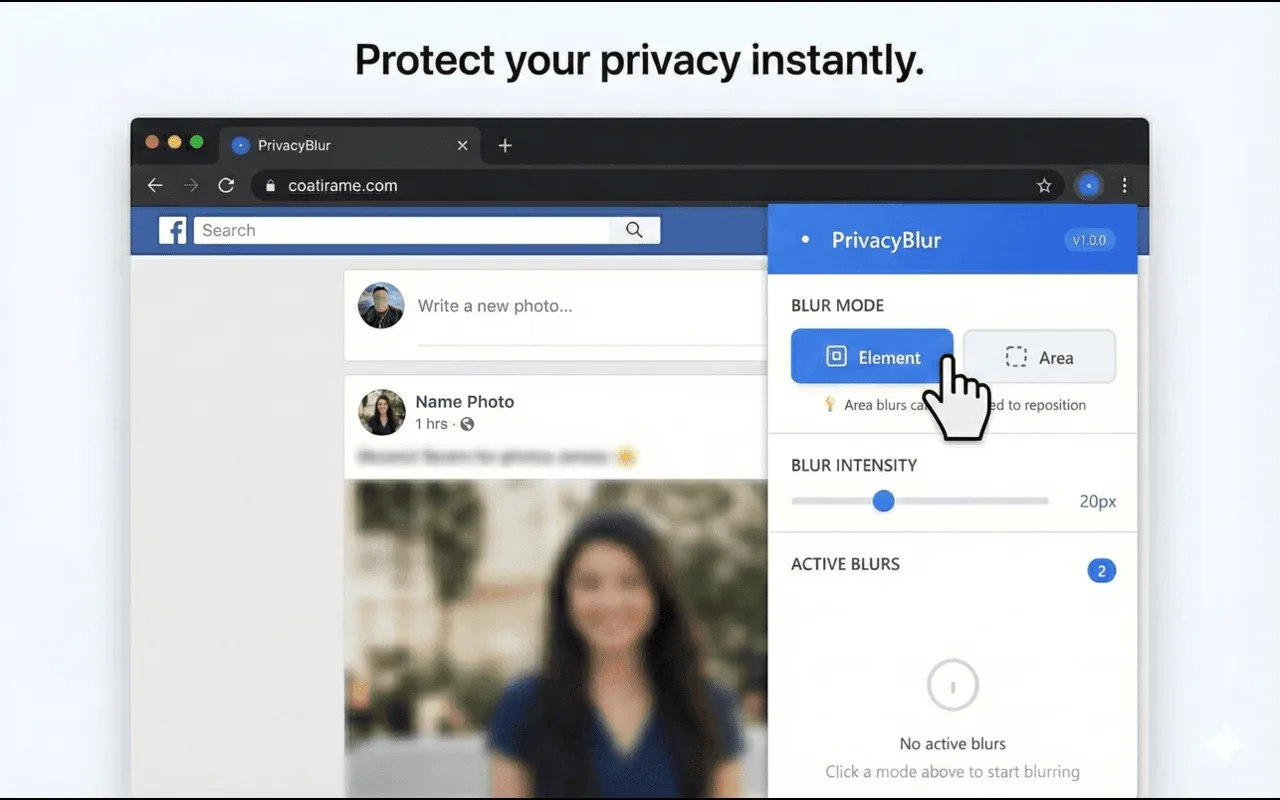
A Chrome extension that blurs anything on a web page with one click: emails, names, balances, API keys. Draw a box to blur an area, drag blurs around, and save them so they come back next time. It all happens in your browser.
The real extension
Element mode blurs whatever you click. Area mode blurs a box you draw. One slider sets how strong the blur is, from 5 to 50 pixels.
Sound familiar?
You need the screen, not the personal data on it. Blurring it in a video editor afterwards does not help in a live call.
Re-recording takes an hour. Blurring every frame by hand takes longer.
Teaching from a browser means sharing whatever is on the page at that moment.
You blur the same fields before every Monday meeting. It should remember.
How it works
Open Privacy Blur on the page you are about to share, or press Ctrl/Cmd + Shift + B.
Element mode blurs whatever you click: an email, a name, a balance. Area mode blurs a box you draw. Or select text, right-click, Blur Selected Text.
Drag a blur to move it, save the blurs for that site so they come back on reload, and press Ctrl/Cmd + Shift + X to clear them all.
What it does
Hover over the page and the element under your cursor lights up. Click it and it blurs: an email, a username, a label, a button.
Need a whole panel gone? Draw a rectangle anywhere on the page. Drag it to move it whenever the layout changes.
Save the blurs for a site and they are restored when you reload or open the page again. Perfect for a dashboard you show every week.
Blur
Workflow
Keyboard
Privacy
Privacy Blur has no servers. Blurs are drawn in your browser and saved blur positions stay in Chrome storage on your machine.
No tracking scripts, no sign-up and no ads. It even works offline.
activeTab to draw blurs on the page you are on, storage to remember them, contextMenus for right-click text blur.
The blur is part of the page, so a Zoom, Meet or Teams screen share and any screen recording show it blurred too.
Price
All blur modes, saved blurs and shortcuts are free, with no limit and no account.
$0
No account, no trial clock.
Pay once
A one-time Pro is in the works. No subscription. Free stays free.

One email when Pro and the auto-blur presets land. No spam, unsubscribe anytime.
No spam. Unsubscribe anytime.
Follow along
Good to know
Yes. The blur is drawn on the web page itself, so anyone watching your shared screen or recording sees the blurred version, just like you do.
No. Blurs are drawn over the page in your browser. Saved blur positions stay in Chrome storage on your computer. There is no server, no analytics and no account.
If you save them for that site, yes. Saved blurs come back automatically when you reload or open the page again, which helps with dashboards you show every week.
activeTab to draw blurs on the page you are on, storage to remember your blurs and settings, and contextMenus for the right-click Blur Selected Text option.
Yes. Every blur mode, saved blurs and the shortcuts are free, with no account. A one-time Pro is in the works; leave your email if you want to hear when it is ready.
Free on Chrome for Mac, Windows, Linux and ChromeOS.
Add to Chrome, it’s free