 Cleaner
What Is Site Data? Cache, Cookies, Local Storage, IndexedDB and Service Workers in Plain English
What is site data? A plain-English guide to the six things a website stores in your browser, what each one is for, and what you lose when you clear it.
r/ Subreddit ▾
Post to a community. Check its rules first, many only allow questions.
r/chromer/techsupportr/WindowsHelpr/MacOSr/productivity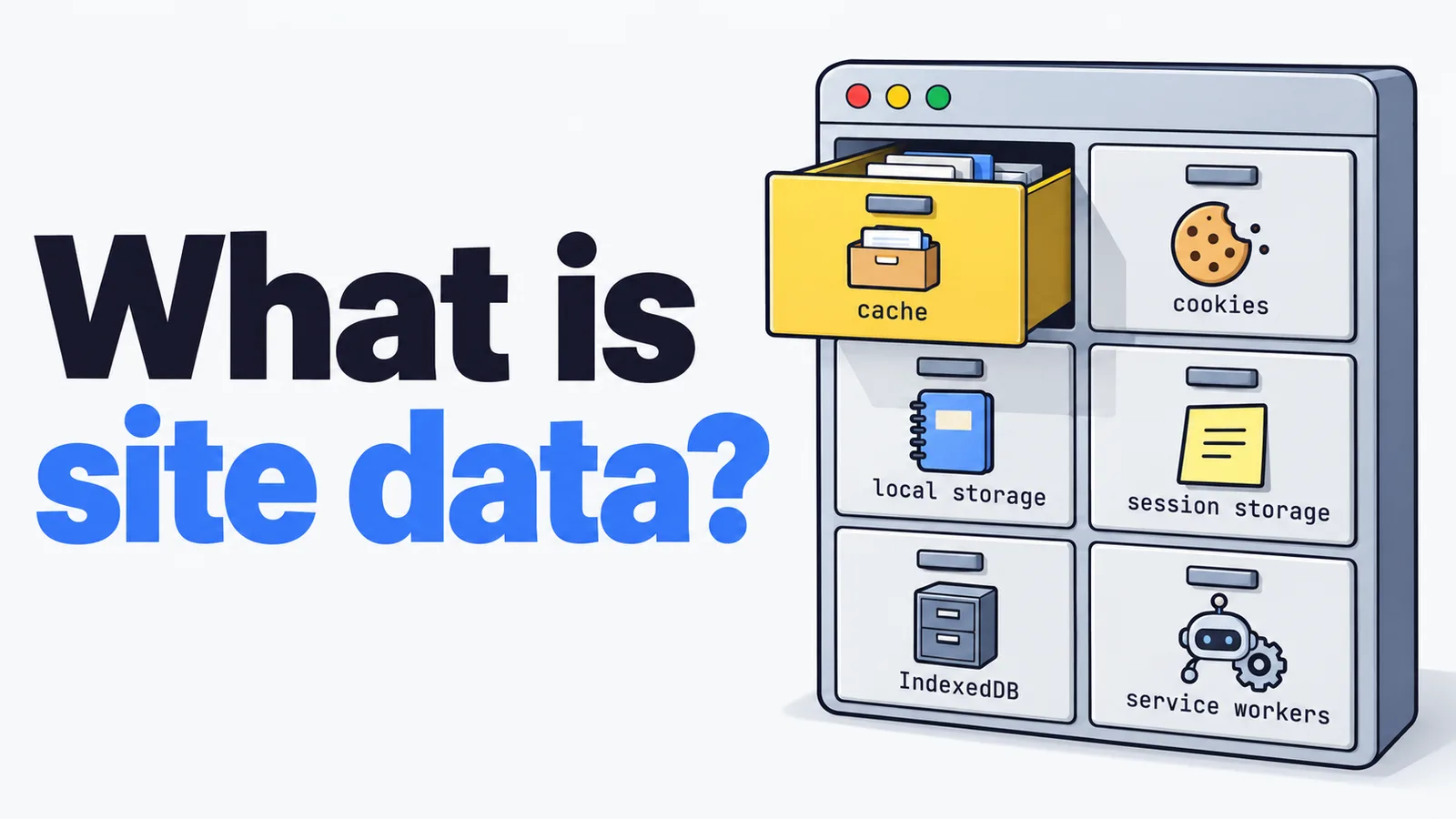
On this page · 13 sections
- The short answer
- What is site data?
- What is the cache?
- What are cookies?
- What is local storage?
- What is session storage?
- What is IndexedDB?
- What is a service worker (and Cache Storage)?
- What we saw when we cleared each one in Chrome
- Which one should you clear?
- Is it safe to delete site data?
- Clear it for one site, not every site
- Frequently asked questions
What is site data? It is the stuff a website saves inside your browser so it can remember you, work faster and keep working offline. Chrome hides all of it behind one checkbox called Cookies and other site data. Tick it and you get signed out of everything, and most people never learn what else went with it.
This guide explains each of the six things in plain words: what it is, a real-life example, and what you lose if you clear it. We also stored all six on a test site in Chrome and cleared them step by step, so you can see what actually survives.
The short answer#
- Site data = everything a site keeps in your browser besides its cached files: cookies, local storage, session storage, IndexedDB and service workers.
- The cache is separate. Clearing it never signs you out.
- Clearing site data signs you out and resets that site to a first visit. Passwords and bookmarks stay.
- Clear one site, not every site.
What is site data?#
Every website you open can save small and large bits of information on your own computer. Chrome groups them by site: google.com has its own pile, your bank has its own, and one site cannot read another site's pile.
Chrome's Delete browsing data window splits these piles into two checkboxes:
- Cached images and files: copies of the files a site sent you.
- Cookies and other site data: everything else on this list.
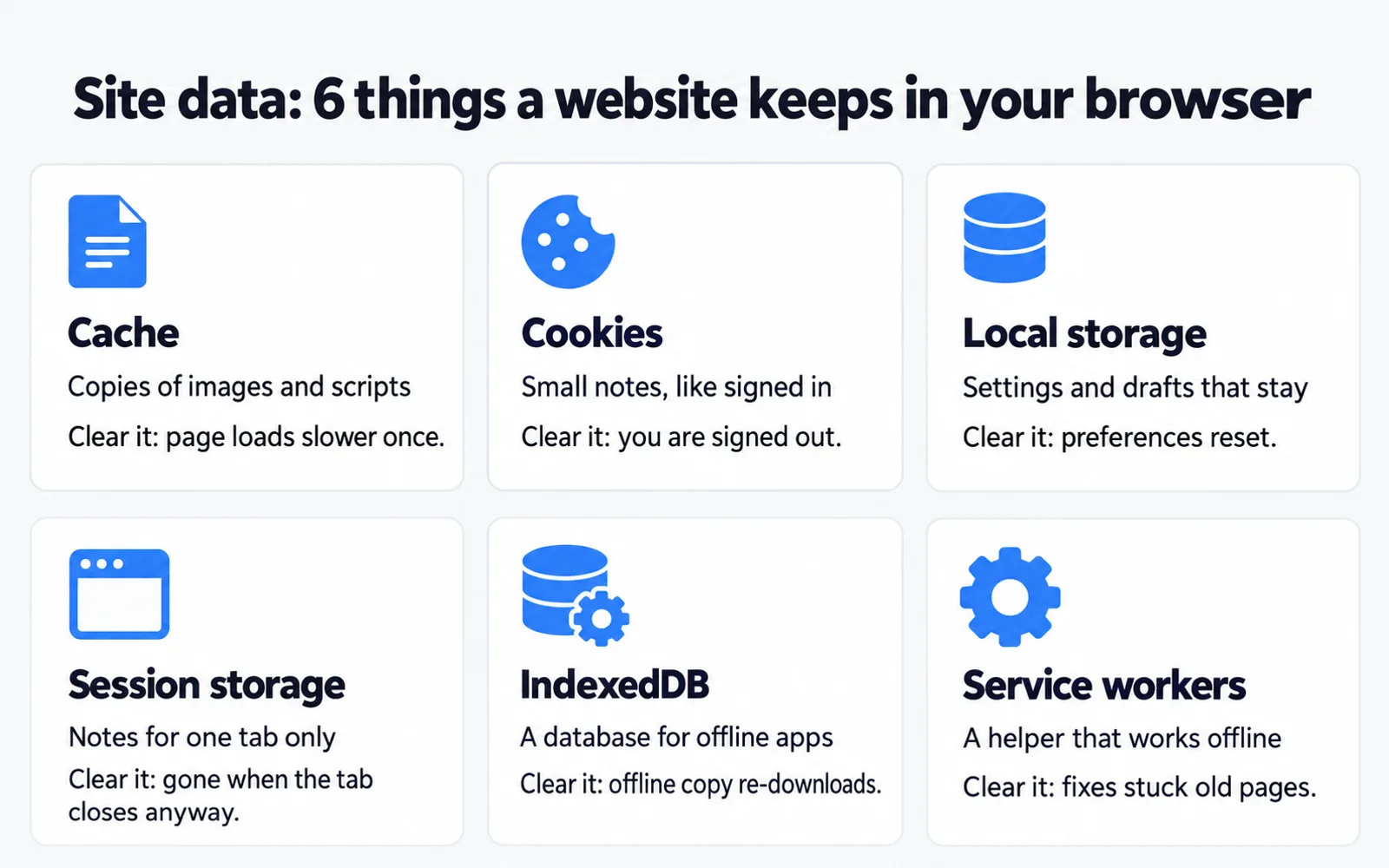
That second box is the one people mean by "site data". It sounds like one thing. It is really five different storage systems, each built for a different job. Here they are, plus the cache, in the order you will meet them in our extension's Full reset: Cache · Cookies · Local Storage · Session Storage · IndexedDB · Service Workers.
What is the cache?#
The cache is a pile of copies. When you open a page, the site sends the logo, photos, fonts, styles and the scripts that make buttons work. Chrome keeps copies so your next visit does not download them again.
Real-life example: a news site's logo and fonts load instantly the second time you visit, because they came from your disk, not the internet.
What you lose if you clear it: nothing you would notice, except that each site loads a bit slower one time while Chrome downloads fresh copies.
When to clear it: a page looks old, half broken, or will not show a change your coworker can already see. Our guide to Chrome showing an old version of a website walks through that case.
What are cookies?#
Cookies are tiny notes a site asks your browser to hold, then hands back to the site on every visit. Each cookie is small, usually well under 4 KB, as MDN's cookie guide explains. A single site often sets dozens of them.
Real-life examples:
- "This visitor is signed in as Anna" (a session cookie).
- "Their cart has two items."
- "They picked English and dollars."
- "They already closed the newsletter popup."
Some cookies come from other companies embedded in the page, such as ad and analytics tools. Those are the third-party cookies that follow you between sites.
What you lose if you clear them: you are signed out, carts may empty, and the site forgets your choices and consent banners.
When to clear them: sign-in trouble. A login loop, the wrong account appearing, or an ERR_TOO_MANY_REDIRECTS error almost always comes from a bad cookie. See how to delete cookies in Chrome for every way to do it.
What is local storage?#
Local storage is a small notebook each site keeps in your browser. Unlike cookies, it is not sent back to the site on every visit. The page's own code reads it when it needs to. Per MDN, browsers allow about 5 MB of local storage per site.
Real-life examples:
- A site remembering you chose dark mode.
- A half-written comment or form saved as a draft.
- "Last viewed product" or "items you recently searched".
- Some web apps keep a sign-in token here instead of in a cookie.
What you lose if you clear it: settings and drafts for that site reset. If the site kept its sign-in token here, you are signed out too.
When to clear it: a site's settings or layout got stuck in a strange state and a normal reload does not help. Developers have more options in our guide to clearing localStorage in Chrome.
What is session storage?#
Session storage is the same kind of notebook as local storage, with one difference: it belongs to a single tab and is thrown away when that tab closes.
Real-life examples:
- Which step you are on in a checkout or a sign-up form.
- Filters you set on a search results page.
- Data a site needs only until you finish one task.
In our test, session storage was already empty the moment we opened the same site in a new tab, while everything else was still there.
What you lose if you clear it: the progress inside that one open tab. Close the tab and you lose it anyway.
When to clear it: rarely. Closing and reopening the tab does the same job.
What is IndexedDB?#
IndexedDB is a real database inside your browser. Local storage is a notebook; IndexedDB is a filing cabinet. Web apps use it to keep large amounts of data on your computer, sometimes hundreds of megabytes. MDN's storage quotas guide says Chrome lets one site use up to 60% of your disk.
Real-life examples:
- Webmail keeping your recent messages so the inbox opens instantly or works offline.
- A design or video tool saving project files while you work.
- Chat apps storing message history.
- Document editors keeping an offline copy.
What you lose if you clear it: the offline copy. Your real data usually lives on the company's servers, so the app downloads it again, which can take a while on a big account. Anything you created offline and never synced could be lost, so let the app sync first.
When to clear it: a web app shows old data, will not sync, or Chrome is using far more disk space than you expect. Our breakdown of Chrome taking up too much space shows where to look.
What is a service worker (and Cache Storage)?#
A service worker is a small helper script a site installs in your browser. It sits between the page and the internet. It can answer requests from its own saved copies, which is how some sites load offline, and it can receive push notifications.
It keeps those saved copies in Cache Storage, a store that belongs to the site, not to Chrome's normal cache. That detail matters, as our test below shows.
Real-life examples:
- A web app that still opens on a plane with no Wi-Fi.
- A site that sends you notifications when the tab is closed.
- An online store that shows its last page instantly even on a slow connection.
What you lose if you clear it: offline mode for that site until you visit again. The site reinstalls its helper on your next visit.
When to clear it: the classic stuck site. You cleared the cache, you hard-reloaded, and the page still shows last week's version. A service worker is often what keeps serving the old copy.
What we saw when we cleared each one in Chrome#
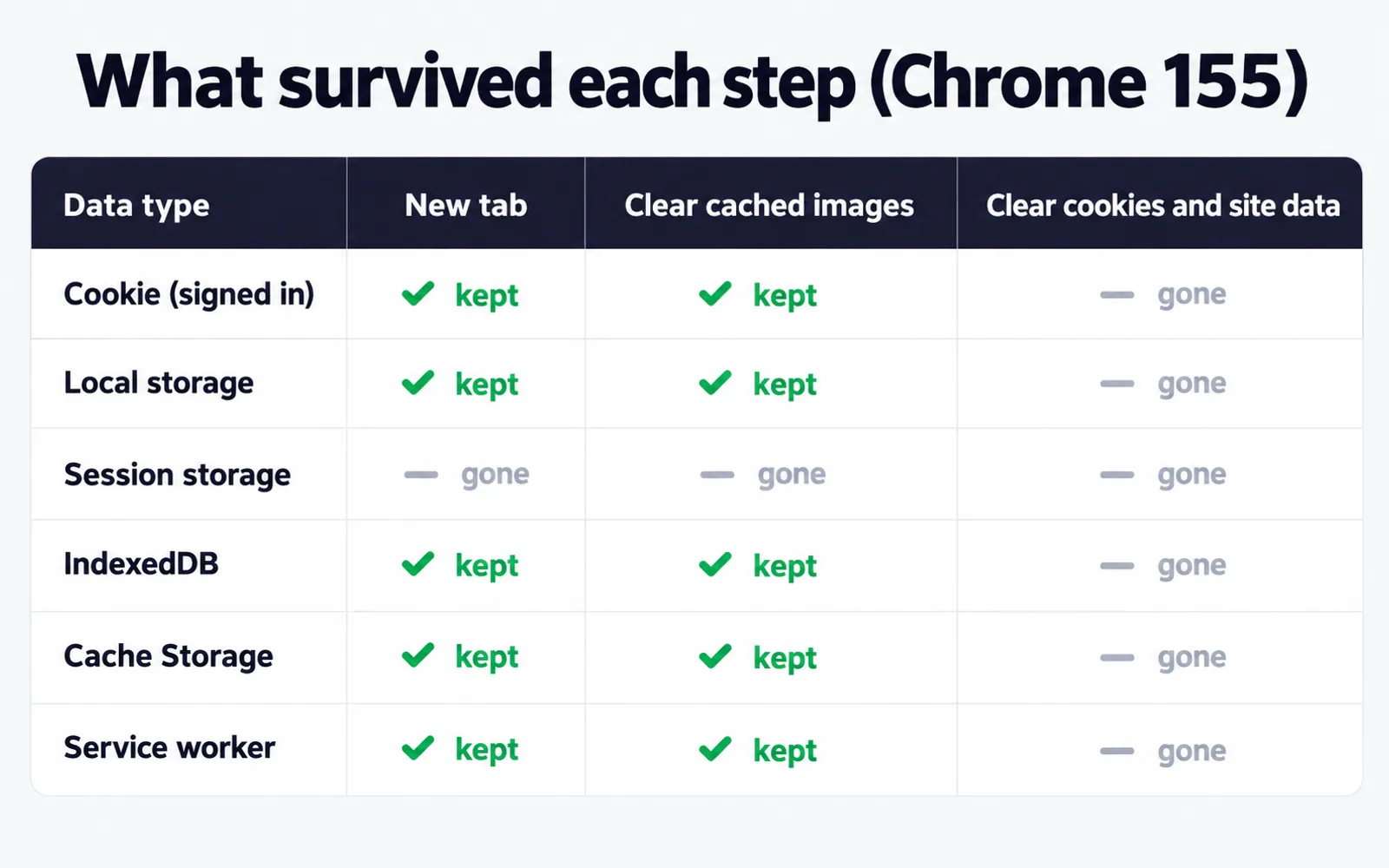
Tested on a MacBook with macOS 26.3 and Chrome 155.0.8059.85, October 21, 2026. We built a small test site that saved one of each: a sign-in cookie, two local storage items, one session storage item, an IndexedDB database, a Cache Storage entry, a registered service worker, and a script that Chrome put in its normal cache. Then we cleared things the way Chrome's own options do and checked what was left.
| Data type | Open site in a new tab | Clear "Cached images and files" | Clear "Cookies and other site data" |
|---|---|---|---|
| Cookie (signed in) | Kept | Kept | Gone |
| Local storage (2 items) | Kept | Kept | Gone |
| Session storage (1 item) | Gone | Gone | Gone |
| IndexedDB (1 database) | Kept | Kept | Gone |
| Cache Storage (1 entry, about 196 KB) | Kept | Kept | Gone |
| Service worker | Kept | Kept | Gone |
| Site storage Chrome reported | 216 KB | 216 KB | 0 KB |
Three things stood out:
- Clearing the cache did not touch the service worker's Cache Storage. All 196 KB of the site's own offline copies survived. That is why "I cleared my cache and it is still broken" happens so often.
- Clearing site data removed everything in one go, including the sign-in cookie. There is no middle ground inside Chrome's main delete window.
- Chrome's storage number does not count local storage. The 216 KB figure covered IndexedDB, Cache Storage and the service worker only, so a site can store more than Chrome's usage number shows.
Which one should you clear?#
Match the symptom to the data type. Start with the gentlest fix and only go further if the problem stays.
| What you see | Clear this | Signs you out? |
|---|---|---|
| Page looks old or broken | Cache, then service workers | No |
| Still old after clearing cache | Service workers and Cache Storage | Usually no |
| Login loop, wrong account, too many redirects | Cookies for that site | Yes, that site only |
| Settings or layout stuck in a weird state | Local storage | Sometimes |
| Web app shows old data or will not sync | IndexedDB (after it syncs) | Sometimes |
| You want a clean first visit for testing | Everything for that site | Yes |
If you are unsure, read our cache vs cookies guide first. It covers the two you will reach for most often.
Is it safe to delete site data?#
Yes, with two things to keep in mind.
What site data never contains:
- Your saved passwords. They live in Chrome's password manager.
- Bookmarks, browsing history and downloads.
- Your account on the website itself. Your email, files and orders sit on the company's servers.
What you do lose:
- Sign-ins for the sites you clear.
- Site choices like language, dark mode and dismissed popups.
- Offline copies, which download again on the next visit.
- Unsynced work in a web app. Let it finish saving before you clear.
The real cost is not danger, it is annoyance. Clearing site data for every site means signing back into mail, bank, work tools and shops, often with a two-factor code each time.
Clear it for one site, not every site#
Chrome's main delete window works on all sites at once. To clear just one site in Chrome itself, click the icon to the left of the web address, open Cookies and site data, then Manage on-device site data, and delete that site. Developers can use the Application panel; our guide to clearing site data in Chrome DevTools explains each checkbox there.
We built Cache Cookie Cleaner because those steps are buried. Open it on the broken site and it shows how many cookies and storage items that site holds before anything is deleted. Then you pick how far to go:
- Fix broken page clears the cache and service workers and keeps you signed in.
- Sign out & reset clears cookies, cache and site storage for that one site.
- Full reset clears all six: Cache · Cookies · Local Storage · Session Storage · IndexedDB · Service Workers.
It reloads the page and tells you what it removed. Every other site stays exactly as it was, so you fix one page without signing out of your whole day.
Frequently asked questions
What is site data on Chrome?
Site data is everything a website saves inside Chrome besides its cached files: cookies, local storage, session storage, IndexedDB databases, Cache Storage and service workers. Chrome deletes all of it together when you tick Cookies and other site data, which is why that box signs you out.
Is it safe to delete site data?
Yes. Site data never holds your saved passwords, bookmarks, history or downloads, and the site rebuilds it on your next visit. You lose sign-ins, site settings such as dark mode, and any offline copy a web app kept. Clear one site at a time to keep everything else.
Will deleting site data delete my passwords?
No. Saved passwords live in Chrome's password manager, a separate store from site data. After clearing, you are signed out of the site, but Chrome can still fill in the saved password so signing back in takes one click.
Does clearing cached images and files remove site data?
No. In our Chrome 155 test, clearing the cache left the sign-in cookie, local storage, IndexedDB, Cache Storage and the service worker untouched. Only the separate Cookies and other site data option removed them.
Why is a site still broken after I cleared the cache?
The broken part probably lives in site data, not the cache. A service worker or Cache Storage can keep serving an old page after the normal cache is empty, and a bad cookie can cause login loops. Clearing that one site's data usually fixes it.
Sources
- Google Chrome Help — Delete browsing data in Chrome (checked Oct 21, 2026)
- MDN Web Docs — Using HTTP cookies
- MDN Web Docs — Web Storage API (localStorage and sessionStorage)
- MDN Web Docs — Storage quotas and eviction criteria
- MDN Web Docs — IndexedDB API
- MDN Web Docs — Service Worker API
- MDN Web Docs — Cache (Cache Storage API)
- MDN Web Docs — HTTP caching
Found this useful? Share it on Reddit or pass it on.
r/ Subreddit ▾
Post to a community. Check its rules first, many only allow questions.
r/chromer/techsupportr/WindowsHelpr/MacOSr/productivity