 Markdown Viewer
Claude Code Context Full? What to Do Before Auto-Compact Eats Your Decisions
Claude Code context full? Learn what auto-compact keeps and drops, when to use /compact vs /clear, and how Markdown files keep your decisions safe.

On this page · 11 sections
- The short answer
- What "context full" actually means in Claude Code
- What auto-compact keeps and what it drops
- /compact vs /clear vs /context: which command when
- When you see "Context left until auto-compact": a 7-step checklist
- The durable fix: move decisions out of the chat into Markdown files
- Keep the main context clean with subagents
- Review what Claude wrote after each milestone
- Common mistakes that make context fill faster
- The bottom line
- Frequently asked questions
You are two hours into a feature. Claude Code has been great. Then the footer warns you about context, auto-compact runs, and suddenly Claude asks which database you chose. You chose it an hour ago. Now you have to explain it again.
If your Claude Code context is full and you are not sure what to do, this guide is for you. It explains, from Anthropic's official docs, what the context window is, what auto-compact keeps and drops, and when to use /compact, /clear and /context. Then it shows the fix that actually stops the forgetting: keep your decisions in Markdown files, not in the chat.
We build and ship apps with Claude Code every day, and our repos hold hundreds of Markdown files: CLAUDE.md, skills, plans and specs. This is the routine we use.
The short answer#
- A full context is normal, not an error. Claude Code compacts automatically and keeps going, but details from early in the chat can be lost.
- Know what survives. CLAUDE.md, auto memory and your plan-mode plan are reloaded from disk; chat-only decisions are only summarized.
- Pick the right command.
/compactkeeps the task with a shorter history,/clearstarts fresh,/contextshows what is using space (comparison). - When the warning shows up, follow the 7-step checklist before auto-compact decides for you.
- The durable fix: write decisions to
plan.mdanddecision-log.md, point CLAUDE.md at them, and review those files after each milestone.
What "context full" actually means in Claude Code#
Claude's context window is everything the model can see right now. Anthropic lists what goes in: your conversation history, file contents, command outputs, CLAUDE.md, auto memory, loaded skills and system instructions.
Every file Claude reads and every test it runs adds to that pile. Anthropic's best-practices page puts it plainly: the context window "fills up fast, and performance degrades as it fills." When it gets full, Claude may start forgetting earlier instructions or making more mistakes.
How big is it? On Pro, Max, Team, Enterprise and the Anthropic API, Claude Code defaults to Opus 5.5. Opus 4.7 and later run with a 1 million token window by default. Models with a native 1M window auto-compact at about 967K tokens unless you change it. Older setups, such as Sonnet 4.6 or Opus 4.6 without extended context, compact at the 200K boundary.
A bigger window means the warning comes later. It does not mean the problem goes away. A long session still mixes old dead ends with the work you care about.
What happens at the limit? Claude Code manages it for you. It clears older tool outputs first, then summarizes the conversation if needed. Your requests and key code snippets are preserved. Detailed instructions from early in the conversation may be lost.
That last sentence is the whole problem. "We use SQLite, not Postgres" is exactly the kind of early instruction a summary can blur.
What auto-compact keeps and what it drops#
Anthropic publishes a table of what happens to each kind of content after compaction. Here is the short version.
| Content | After compaction |
|---|---|
| Project-root CLAUDE.md and unscoped rules | Re-injected from disk |
| Auto memory (MEMORY.md) | Re-injected from disk |
| The plan Claude wrote in plan mode | Re-injected from disk |
| Files Claude read or edited | Up to five re-read, most recently modified first |
| Skills you invoked | Re-injected, up to 5,000 tokens each and 25,000 total |
| Nested CLAUDE.md files in subfolders | Reloaded on demand when Claude touches those folders |
| Your chat messages and Claude's answers | Replaced by a structured summary |
Notice the pattern. Anything that lives in a file on disk comes back. Anything that only lived in the chat is squeezed into a summary.
The summary is good. Anthropic says it keeps your requests and intent, key technical concepts, files examined with important snippets, errors and how they were fixed, pending tasks and current work. But full tool outputs and intermediate reasoning are gone.
So the reason a decision gets lost is rarely that compaction is bad. It is that the decision was never written anywhere except the chat.
/compact vs /clear vs /context: which command when#
These three commands cover almost every situation. Here is what each does, in the words of the official commands reference, plus when we reach for it.
| Command | What it does | Use it when |
|---|---|---|
/context |
Shows current context usage as a colored grid, with suggestions for heavy tools and memory bloat | You want to know what is eating space before deciding |
/compact [instructions] |
Summarizes the conversation so far; optional focus instructions guide the summary | Same task, history too long |
/clear |
Starts a new conversation with empty context | Switching to unrelated work, or the session is full of failed attempts |
/rewind |
Rolls back, or summarizes from or up to a selected message | Only part of the chat is noise |
/btw |
Asks a side question that does not enter the conversation history | Quick lookups you do not need to keep |
Compact with a focus. A bare /compact lets Claude guess what matters. Adding a focus tells it what to keep, for example /compact focus on the payment flow and the list of files we changed. You can also add a "Compact Instructions" section to your CLAUDE.md so every compaction keeps the same things.
Compaction is not free. Anthropic's cost guide notes that /compact reads the whole conversation it summarizes, so compacting a large context is itself a large request. When you want a fresh start instead of continuity, /clear costs nothing.
Clear without losing the old chat. Run /rename first so you can find the session later, then /clear. /resume brings it back if you need it.
Tune or turn off auto-compact. /autocompact 500k compacts earlier, and /autocompact auto goes back to the default for your model. To turn it off, toggle Auto-compact in /config, or set DISABLE_AUTO_COMPACT=1 for one session. Manual /compact keeps working either way. We keep it on: a forced summary is better than a session that stops.
When you see "Context left until auto-compact": a 7-step checklist#
The context warning is not a usage limit. Anthropic's docs describe it as the conversation getting close to the session's auto-compact window. You still have room, which means you still have a choice.
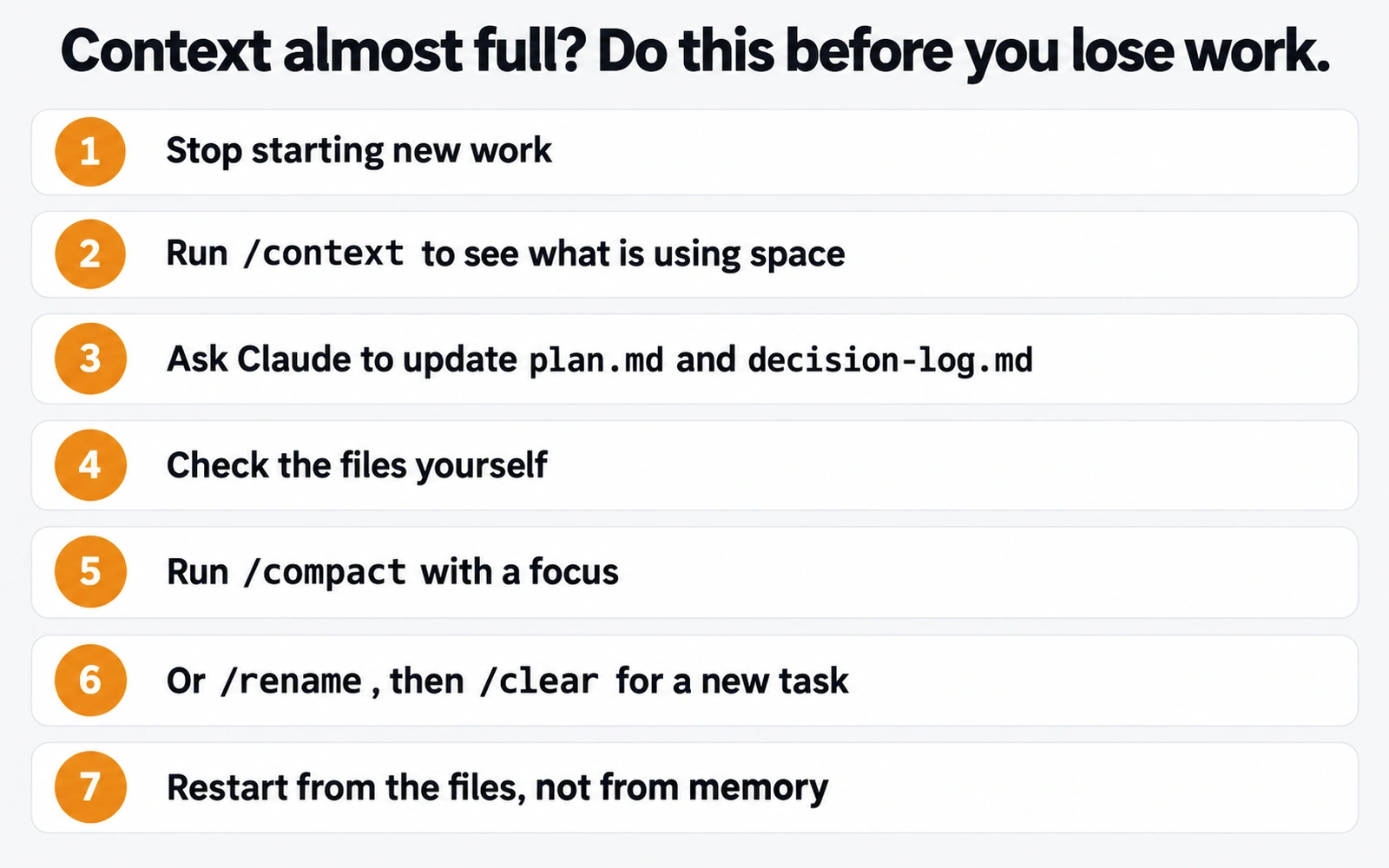
- Stop starting new work. Finish the current step, but do not kick off a new feature in a nearly full window.
- Run
/context. See whether the space is going to a huge file, a long test log, or MCP tools. If one big output is the culprit, it will be gone after compaction anyway. - Ask Claude to write things down. Use a prompt like: "Update docs/plan.md with what is done and what is next. Append today's decisions to docs/decision-log.md with one line of reasoning each."
- Check the files yourself. Open them and read. If a decision is missing or wrong, fix it now while Claude still remembers the details.
- Compact on purpose. Run
/compact focus on the current task, the open bugs, and the files we changed. A focused summary beats the automatic one. - Or clear for a new task. If the next step is unrelated, run
/rename, then/clear, and start the new session by pointing Claude at the plan file. - Restart from the files, not from memory. First prompt after the compact or clear: "Read docs/plan.md and docs/decision-log.md, then continue with the next unchecked item."
Step 3 is the one people skip. It takes one prompt and saves the "wait, what did we decide?" moment later.
The durable fix: move decisions out of the chat into Markdown files#
The chat is short-term memory. Files are long-term memory. Claude Code already treats them that way: CLAUDE.md and your plan are reloaded from disk after every compaction. You just need to put the right things in files.
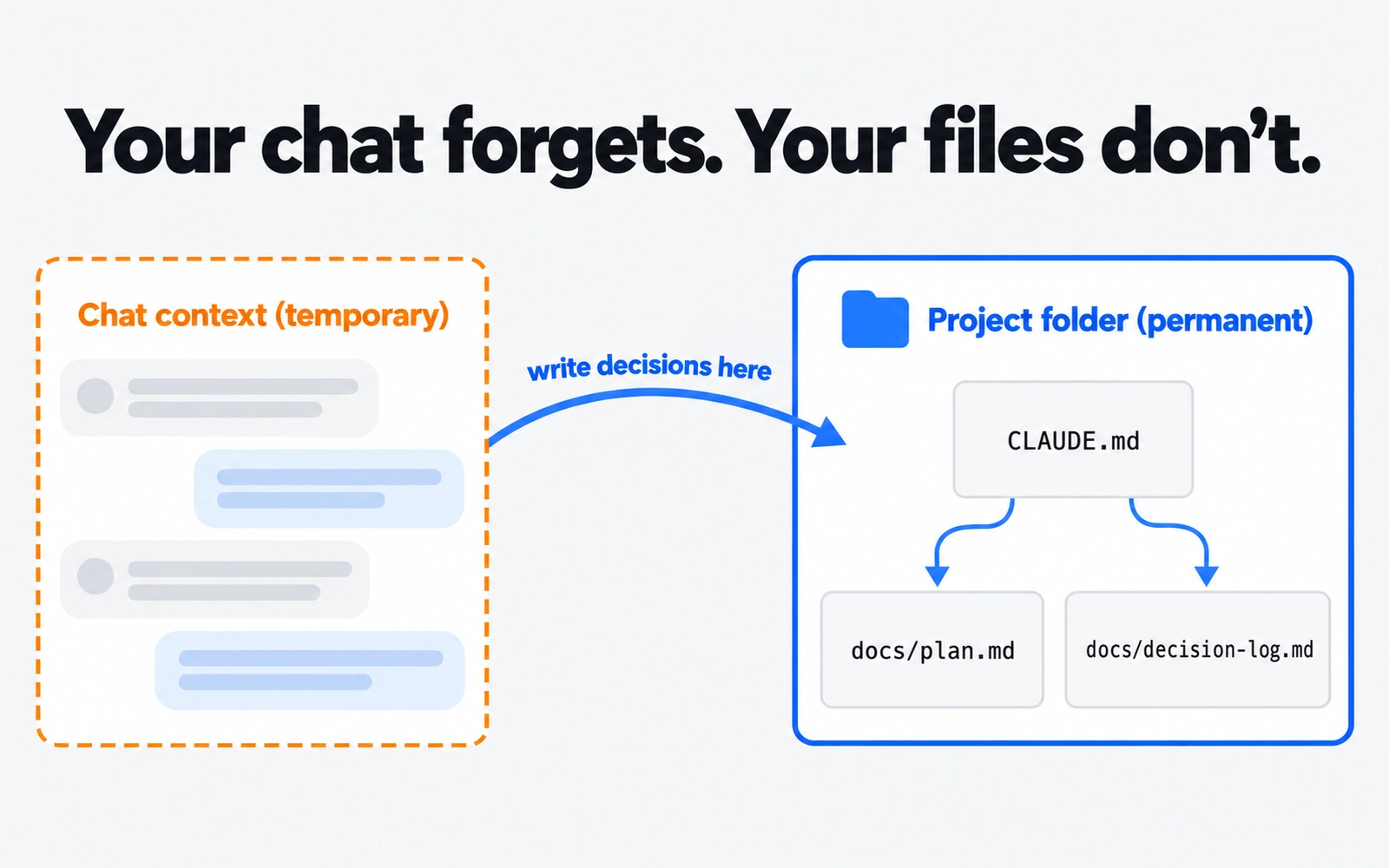
We use two small files in a docs/ folder.
docs/plan.md holds the current goal, a checklist, and what is out of scope. Claude ticks items as it goes. When a session ends or compacts, the next step is right there.
**Plan: offline sync**
Goal: notes sync between Mac and iPhone without an account.
- [x] Local store with change log
- [ ] Conflict rule: newest edit wins, keep both if same minute
- [ ] Settings toggle
Out of scope: web app, sharing, end-to-end encryption UI.
docs/decision-log.md is an append-only list. One line per decision, with the date and the reason. It is short on purpose, so it is cheap to load.
- 2026-10-07: SQLite, not Core Data. Reason: easier to test and inspect.
- 2026-10-08: No login in 1.0. Reason: sync goes through the user's iCloud.
Point CLAUDE.md at them. CLAUDE.md is loaded at the start of every session and the project-root file is re-injected after compaction. Add a short section:
## Working memory
- Current plan: docs/plan.md. Read it before starting work. Update it when a step is done.
- Decisions: @docs/decision-log.md. Append new decisions; never rewrite old ones.

## Compact instructions
When compacting, keep the list of changed files, open bugs, and the next unchecked item in docs/plan.md.
Two details from the docs matter here. First, @path imports load the imported file at launch alongside CLAUDE.md, so the decision log is always in view. Imports do not reduce context cost, though, so only import small files. The plan can grow, so we reference it in plain text and let Claude open it when needed.
Second, Anthropic recommends keeping each CLAUDE.md under 200 lines. Longer files use more context and Claude follows them less reliably. CLAUDE.md should point to your knowledge, not contain all of it. Our CLAUDE.md best practices guide goes deeper on what to keep in it.
Use plan mode for the plan itself. The plan Claude writes in plan mode is one of the things re-injected from disk after compaction. If you want to know where those plan files end up, see where Claude Code saves plan files.
Keep the main context clean with subagents#
The fastest way to fill your context is research. "Look through the codebase and find how auth works" can mean dozens of file reads, all landing in your main conversation.
Subagents solve this. Per the official docs, a subagent works in its own context window, its tool calls stay out of yours, and Claude gets back a summary when it finishes. Anthropic's best-practices page suggests prompts like "use subagents to investigate how our authentication system handles token refresh."
Good jobs to hand to a subagent:
- Exploring an unfamiliar part of the codebase
- Running a long test suite and reporting only failures
- Reading documentation or log files
- Reviewing a finished diff against
docs/plan.mdin a fresh context
One caveat: a subagent's requests still count toward your usage. You save context, not tokens. For a big investigation that is almost always a good trade.
Review what Claude wrote after each milestone#
Files only help if they are right. After a milestone, a compaction, or the end of a day, spend two minutes reading what Claude actually wrote down.
What we check:
- Is plan.md current? The ticked items should match what really shipped.
- Did the decision log grow? If you made a call today and it is not there, add it.
- Did Claude create new docs? Long sessions tend to leave notes, specs and summaries scattered across folders.
- Is anything orphaned? A file that nothing links to is a file the next session will never find.
Any editor works for this. VS Code's built-in preview is fine for a single file, and many people already have it open. Our problem was seeing the whole folder at once: which files changed today and how they link together.
That is why we built Markdown Viewer, a free, read-only app for Mac and Windows. Its Table view lists every Markdown file with title, links in and out, and last update, so sorting by last update shows exactly what Claude touched this session. The Map view draws each file as a card with arrows for links, and puts an orange dot on orphan files nothing links to. It never edits your files, so it is safe to leave open beside Claude Code. For more ways to read Claude's output, see how to view the Markdown files Claude Code writes.
Common mistakes that make context fill faster#
Anthropic's best-practices guide names a few failure patterns. These are the ones we see most in vibe coding sessions.
- The kitchen sink session. One task, then an unrelated question, then back to the first task. Fix:
/clearbetween unrelated tasks. - Correcting over and over. After two failed corrections, the context is full of wrong approaches. Fix:
/clearand write a better first prompt using what you learned. - The bloated CLAUDE.md. If it is too long, important rules get lost. Fix: prune it, and move workflow-specific instructions into skills, which load only when used.
- Unscoped exploration. "Investigate the app" can read hundreds of files. Fix: narrow the question or use a subagent.
- One giant output. If a single file or tool output is so large that context refills right after each summary, Claude Code stops auto-compacting after a few attempts and shows an error. Fix: filter logs before Claude reads them.
To keep an eye on all of this without running a command, configure a status line. Claude Code passes it the context used and remaining percentages, so you see the window filling before the warning appears.
The bottom line#
A full context in Claude Code is a normal part of long sessions. Auto-compact keeps you working; it just cannot keep what you never wrote down. Write decisions to plan.md and decision-log.md, point CLAUDE.md at them, compact on purpose at milestones with a clear focus, and use subagents for heavy reading.
Then check the files. Two minutes of review after each milestone is what turns "Claude forgot" into "Claude read the plan and kept going." If you are still choosing a coding agent, our Claude Code vs Codex comparison covers how each one handles long work.
Frequently asked questions
What happens when Claude Code context is full?
Claude Code compacts automatically as you approach the limit. It clears older tool outputs first, then replaces the conversation with a structured summary. Your requests and key code snippets are kept, but detailed instructions from early in the conversation may be lost. The session keeps going; Claude just works from the summary instead of the full history.
What does 'context left until auto-compact' mean in Claude Code?
It is a warning that the conversation is getting close to the session's auto-compact window, the point where Claude Code summarizes older history to free space. It is not a usage limit and it does not cost you anything by itself. Treat it as a cue to save your decisions to files and compact on purpose.
Should I use /compact or /clear in Claude Code?
Use /compact when you want to keep working on the same task with a shorter history; add a focus like '/compact focus on the auth fix'. Use /clear when you switch to unrelated work. Anthropic's docs note that /compact is itself a large request, while /clear costs nothing.
How big is the Claude Code context window?
It depends on the model. On Pro, Max, Team, Enterprise and the Anthropic API, Claude Code defaults to Opus 5.5, which runs with a 1 million token window by default. Models with a native 1M window auto-compact at about 967K tokens unless you set a smaller auto-compact window.
Can I turn off auto-compact in Claude Code?
Yes. Toggle Auto-compact in /config, set autoCompactEnabled to false in settings, or set DISABLE_AUTO_COMPACT=1 for one session. The manual /compact command still works. You can also compact earlier instead, for example with /autocompact 500k.
How do I see how much context Claude Code is using?
Run /context. It shows current context usage as a colored grid, with suggestions for context-heavy tools and memory bloat. For a constant view, configure a status line: Claude Code passes context_window.used_percentage and remaining_percentage to your status line script.
Sources
- Claude Code docs — How Claude Code works (context window, when context fills up)
- Claude Code docs — Explore the context window (what survives compaction)
- Claude Code docs — Commands (/compact, /clear, /context, /autocompact, /btw, /rewind)
- Claude Code docs — Model configuration (1M context, auto-compact window)
- Claude Code docs — Manage costs effectively (reduce token usage, compact instructions)
- Claude Code docs — Best practices (manage context aggressively, subagents)
- Claude Code docs — How Claude remembers your project (CLAUDE.md, imports, auto memory)
- Claude Code docs — Settings reference (autoCompactEnabled, autoCompactWindow)
- Claude Code docs — Environment variables (DISABLE_AUTO_COMPACT)
- Claude Code docs — Customize your status line (context_window fields)
Related reading
AI Tools & Models
CLAUDE.md Best Practices (2026): Keep It Short, Point to Your Docs
CLAUDE.md best practices from the official docs: where it lives, how long it should be, what to put in it, a starter template, and fixes when Claude ignores it.
AI Tools & Models
Claude Code Markdown Viewer: 4 Ways to Read the Files Claude Writes
Need a Claude Code markdown viewer? Compare 4 real ways to read CLAUDE.md, skills and plans, and see the links between files before your docs folder gets messy.
AI Tools & Models
Claude Code Plan File Location: Where Plans Are Saved and How to Move Them
The Claude Code plan file location is ~/.claude/plans by default. See how plan files are named, how plansDirectory moves them, and how to review them.