 Markdown Viewer
Claude Code Plan File Location: Where Plans Are Saved and How to Move Them
The Claude Code plan file location is ~/.claude/plans by default. See how plan files are named, how plansDirectory moves them, and how to review them.

On this page · 10 sections
The Claude Code plan file location is ~/.claude/plans, a folder in your home directory, unless you change it. You can point plans anywhere inside your project with the plansDirectory setting, for example "plansDirectory": "docs/plans".
That is the whole answer for most people. The rest of this guide covers what you only learn by losing a plan: how plan mode names files, why every project shares one folder by default, the two cases where plansDirectory is silently ignored, and how to keep plans in your repo so Claude (and you) can re-read them next week.
We build and ship apps with Claude Code every day, and plan files are a big part of how we work. Every fact below was checked against the official Claude Code docs and changelog on October 9, 2026.
The short answer#
- Default location:
~/.claude/plans, one folder for all your projects. - How plans get there: plan mode (
Shift+Tab,/plan, or--permission-mode plan) writes a Markdown plan file before Claude touches your code. - File names: your prompt plus two random words, like
fix-auth-race-snug-otter.md. - Move them: set
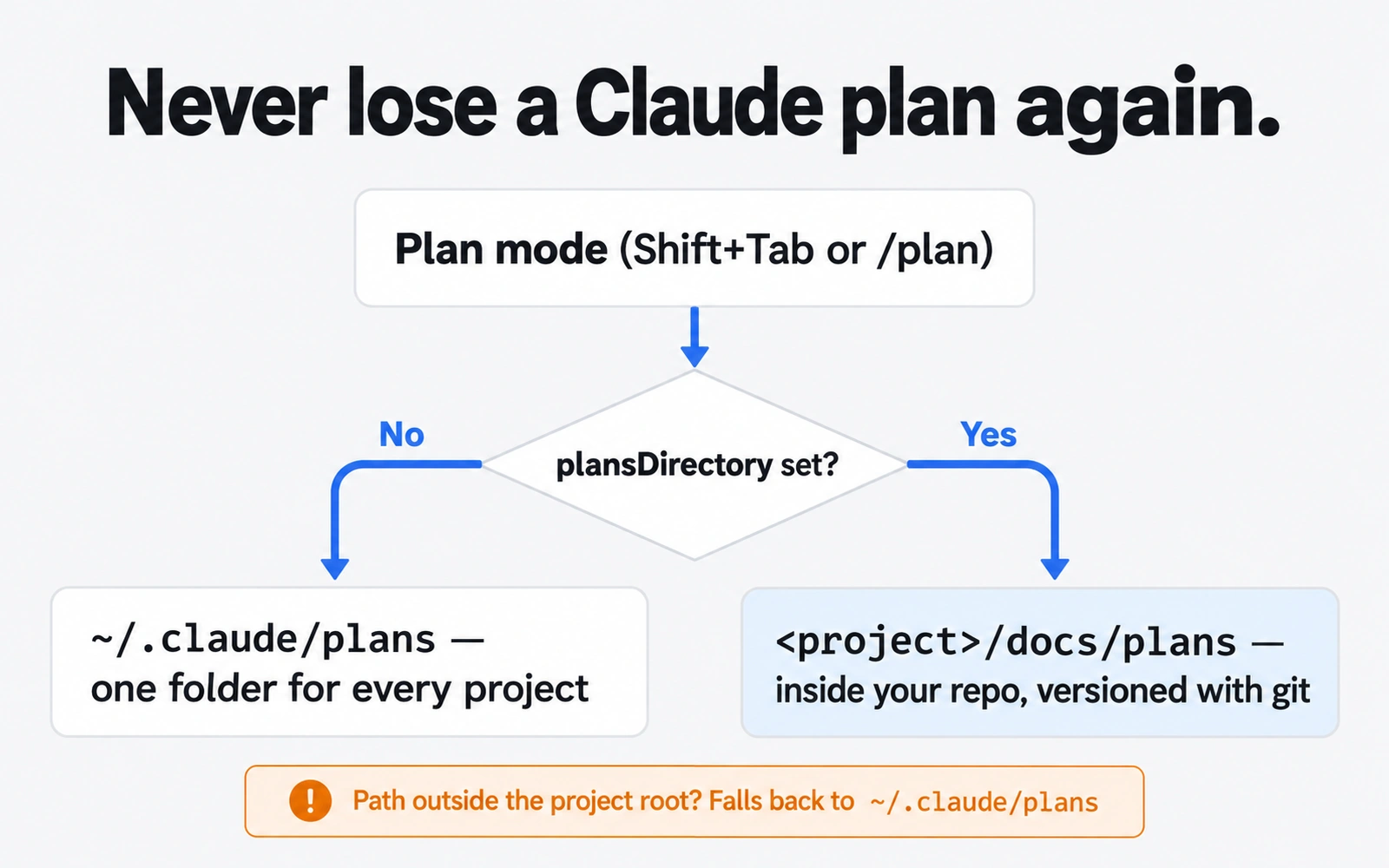
plansDirectoryto a path relative to the project root. Paths outside the root fall back to~/.claude/plans. - Keep them in git so plans are versioned, reviewable and easy for Claude to re-read. Then review them all at once instead of opening files one by one.
Where Claude Code saves plan files by default#
The official settings reference is direct about it. The plansDirectory key is "unset" by default, "so Claude Code uses ~/.claude/plans."
A few things follow from that:
- It is outside your repo. The
~means your home folder:/Users/<you>/.claude/planson a Mac, the same pattern under your user folder elsewhere. Git never sees these files. - It is shared. Every project you plan in writes to the same folder. After a month, it holds plans from your web app, your side project and that one-off script, all mixed together.
- Claude may write there, even though
.claudeis protected. The permission modes page lists.claudeas a protected directory, with exceptions. One of them is "the current session's own plan files" in~/.claude/plans/or in theplansDirectoryyou set. So Claude can update its own plan without a prompt, but not other files in that folder.
On the Mac this post was written on, running Claude Code 2.1.269 with no plansDirectory set, the folder exists at ~/.claude/plans and the plan files in it follow the naming pattern described below. That matches the docs.
To check your own machine, run this in a terminal. It only lists names; it does not open anything.
ls -lt ~/.claude/plans
The -t flag sorts by last modified, so your newest plan is at the top.
How plan mode works#
Plan mode is a permission mode. In Anthropic's words, it "tells Claude to research and propose changes without making them." Claude reads files, runs shell commands to explore, and writes a plan, but edits stay blocked until you approve it.
There are three ways in, all from the official docs:
| How | What it does |
|---|---|
Shift+Tab |
Cycles permission modes until the status bar shows ⏸ plan mode on. Press again to leave without approving. |
/plan or /plan fix the auth bug |
Enters plan mode from the prompt. With a description, it starts planning that task right away. |
claude --permission-mode plan |
Starts the whole session in plan mode. |
When the plan is ready, Claude shows it and asks how to proceed. The options include "Yes, and use auto mode" (or "Yes, auto-accept edits" where auto mode is not available), "Yes, manually approve edits", and "No, keep planning".
Two details people miss:
Ctrl+Gopens the plan in your text editor. You can rewrite steps directly before Claude starts, instead of arguing with it in chat.- A clear-context option exists but is off by default. Set
"showClearContextOnPlanAccept": trueand the approval menu gains a first option that approves the plan, clears the conversation, and starts implementing from the plan alone. That is a good reason to keep plans as real files: the plan survives even when the chat does not. Our guide on what to do when Claude Code's context is full goes deeper on this.
Want plan mode every time? Set defaultMode to "plan" under permissions in .claude/settings.json. That covers terminal sessions. The VS Code extension does not read project settings for the starting mode, so set claudeCode.initialPermissionMode to plan in your VS Code user settings there.
How plan files are named#
The changelog for version 2.1.111 says plan files "are now named after your prompt (e.g. fix-auth-race-snug-otter.md) instead of purely random words."
So a modern plan file name has two parts:
- A short slug from the start of your prompt (
fix-auth-race). - Two random words to keep it unique (
snug-otter).
If you read older blog posts or Reddit threads that say plan names are "three random words," they describe the behavior before 2.1.111. Both are accurate for their time.
Other naming and lifecycle details from the changelog:
/clearstarts a fresh plan file (fixed in 2.1.3). Before that, an old plan could carry over./forkgives each fork its own plan file (fixed in 2.1.71), so edits in one fork no longer overwrite the other.- Pasted images or text no longer leak into names (fixed in 2.1.154). Names used to include
[Image #N]placeholders when a prompt started with a paste.
The name is good enough to find a plan today. It is not good enough to find it in three months. That is why we rename plans we want to keep (more on that below).
Change the location with plansDirectory#
The plansDirectory setting arrived in Claude Code 2.1.9. The official definition: it chooses where Claude Code stores the plan files it writes in plan mode, and "Claude Code resolves the path relative to the project root."
The documented example:
{
  "plansDirectory": "./plans"
}
You can put it in any settings file: ~/.claude/settings.json (you, every project), .claude/settings.json (shared with your team through git), or .claude/settings.local.json (you, this project only).
The docs list two cases where Claude Code ignores your value and keeps writing to ~/.claude/plans:
- The path resolves outside the project root, as
"../plans"does. - The path contains a backslash on macOS, Linux or WSL, as
"docs\\plans"does. Write"docs/plans"instead; it works on Windows too.
A note on older guides. Some third-party guides show an absolute path such as /Users/username/claude-plans in the user settings file. The current official docs describe the value as a path relative to the project root, and say paths that land outside the root fall back to the default. If you want one central folder for every project, the default ~/.claude/plans already is that folder. Use plansDirectory for the opposite: plans inside each repo.
Keep plans in your repo, step by step#
Plans in ~/.claude/plans are fine for throwaway tasks. For real features, we want plans next to the code they describe. Here is the setup, in five steps.
Pick a folder. We like
docs/plans. It sits with the rest of the project docs and is easy to link fromCLAUDE.md.Add the setting to the shared project file. In
.claude/settings.json:{ "plansDirectory": "docs/plans" }Use the shared file so everyone on the repo gets the same location. Use
.claude/settings.local.jsonif it is just for you.Plan something. Press
Shift+Tabuntil you see⏸ plan mode on, describe the task, and approve the plan. The new file appears indocs/plans.Rename the keepers.
fix-auth-race-snug-otter.mdbecomes2026-10-09-auth-race-fix.md. A date prefix keeps the folder in order in any file browser.Commit it with the change. The plan and the code it produced land in the same commit or pull request, so a reviewer can see what was intended, not just what changed.
Why bother? Three reasons we feel every week:
- Claude can re-read it. A plan in the repo can be pulled into a new session with an
@reference, like@docs/plans/2026-10-09-auth-race-fix.md. No need to explain the task again after a/clearor the next morning. - Your
CLAUDE.mdcan point at it. One line such as "Open plans live in docs/plans; read the newest one before starting" gives every session the same starting point. Our CLAUDE.md best practices guide explains how to keep that file short and link out to docs like this. - History is free. Git shows when a plan changed and who changed it. A plan in your home folder has no history at all.
Common mistakes with plan file location#
- Looking for plans inside the project. By default they are not there. Check
~/.claude/plansfirst. - Using
../plansto share one folder across repos. It resolves outside the project root, so Claude Code ignores it and uses the default. - Copying a Windows path to a Mac. A backslash in the value sends plans back to the default on macOS, Linux and WSL. Use forward slashes everywhere.
- Putting the setting in the wrong file. A value in your personal
~/.claude/settings.jsoncan be overridden by the project's.claude/settings.json, which in turn sits below.claude/settings.local.json. If plans land somewhere unexpected, check all three. - Never pruning. Every plan-mode session can write a file. If you keep plans in the repo, delete or archive the ones that were abandoned, or the folder turns into noise.
How to review many plans at once#
Once plans live in your repo, a new problem shows up. After a few weeks you have dozens of them, and ls does not tell you which are current, which were abandoned, and which ones your CLAUDE.md or specs still point to.
You have a few options, each good at something:
- The terminal.
ls -lt docs/planssorts by last change. Fast and free, but you only see names. - VS Code or another editor. Its Markdown preview renders one file well, and search across the folder is solid. It is the right tool if you are already editing code there. Our guide to viewing the Markdown files Claude Code writes compares these approaches.
- A Markdown note app such as Obsidian has a great graph view and backlinks, but it wants the folder set up as a vault first.
- A folder viewer. This is why we built Markdown Viewer, a free, read-only app for Mac and Windows. Our repos hold hundreds of Markdown files (
CLAUDE.md,SKILL.md, plans, specs), and we could not see how they linked together.
For plans specifically, two views in Markdown Viewer do the job:
- Table view lists every file with its title, file name, links in and out, and last update, grouped by folder. Sort by last update and the plan you touched yesterday is at the top. Search finds a plan by any word in it.
- Map view shows each file as a card grouped by folder, with dashed arrows for links. Files nothing links to get an orange dot. In a plans folder, those orphans are often the abandoned plans you can delete.
It never edits, moves or deletes files, and it refreshes live when Claude writes a new plan to disk. If you want a broader comparison of tools, see our roundup of the best Markdown viewer for Mac.
What we recommend#
For quick, one-off tasks, leave the default. Plans in ~/.claude/plans are out of your way, and ls -lt finds the latest one.
For anything that becomes a feature, a fix you will need to explain later, or work across several sessions:
- Set
"plansDirectory": "docs/plans"in.claude/settings.json. - Rename the plans you keep with a date and a clear name.
- Commit each plan with the code it produced.
- Point
CLAUDE.mdat the folder so every new session starts from the latest plan. - Review the whole folder now and then in a table or map view, and prune what was abandoned.
It takes five minutes to set up and saves the "what were we doing again?" conversation at the start of every session. For the bigger picture on working with Claude, start with our Claude guide.
Frequently asked questions
Where does Claude Code save plans?
By default, Claude Code writes the plan files it creates in plan mode to ~/.claude/plans in your home folder. That one folder holds plans from every project. You can move them by setting plansDirectory in a settings file, for example "plansDirectory": "./plans", which Claude Code resolves relative to the project root.
How do I change the Claude Code plans directory?
Add the plansDirectory key to a settings file, such as .claude/settings.json in your project, with a path relative to the project root, like "docs/plans". If the path resolves outside the project root, or contains a backslash on macOS, Linux or WSL, Claude Code ignores it and keeps using ~/.claude/plans.
How are Claude Code plan files named?
Since Claude Code 2.1.111, plan files are named after your prompt plus two random words, for example fix-auth-race-snug-otter.md. Before that release, names were purely random words. Rename a plan after approval if you want to keep it in your repo under a clearer name.
How do I edit a plan in Claude Code?
When Claude presents a plan, press Ctrl+G to open it in your default text editor and change it directly before Claude proceeds. You can also choose "No, keep planning" and tell Claude what to change in chat.
How do I make plan mode the default in Claude Code?
Set defaultMode to "plan" under permissions in .claude/settings.json to make plan mode the default for a project's terminal sessions. For conversations the VS Code extension starts, set claudeCode.initialPermissionMode to plan in your VS Code user settings instead.
Sources
- Claude Code docs — Settings reference: plansDirectory, permissions.defaultMode, showClearContextOnPlanAccept
- Claude Code docs — Choose a permission mode: Analyze before you edit with plan mode
- Claude Code docs — Settings files and precedence
- Claude Code docs — Common workflows: Plan before editing, Reference files
- Claude Code docs — Commands: /plan
- Claude Code CHANGELOG (anthropics/claude-code on GitHub)
- ClaudeLog — What is Plans Directory in Claude Code
Related reading

AI Tools & Models
Claude Code Markdown Viewer: 4 Ways to Read the Files Claude Writes
Need a Claude Code markdown viewer? Compare 4 real ways to read CLAUDE.md, skills and plans, and see the links between files before your docs folder gets messy.
AI Tools & Models
Claude Code vs Cursor (2026): Terminal Agent or AI Editor?
Claude Code vs Cursor compared on price, models, workflow and limits, with a clear rule for when to pick the terminal agent, the AI editor, or both.

AI Tools & Models
Claude Code Context Full? What to Do Before Auto-Compact Eats Your Decisions
Claude Code context full? Learn what auto-compact keeps and drops, when to use /compact vs /clear, and how Markdown files keep your decisions safe.